Customer email, answered from your own documents1.
Nearlysent reads incoming email, finds the answer in your manuals, price lists and policies, and drafts a reply that cites every fact. You check it and send it.
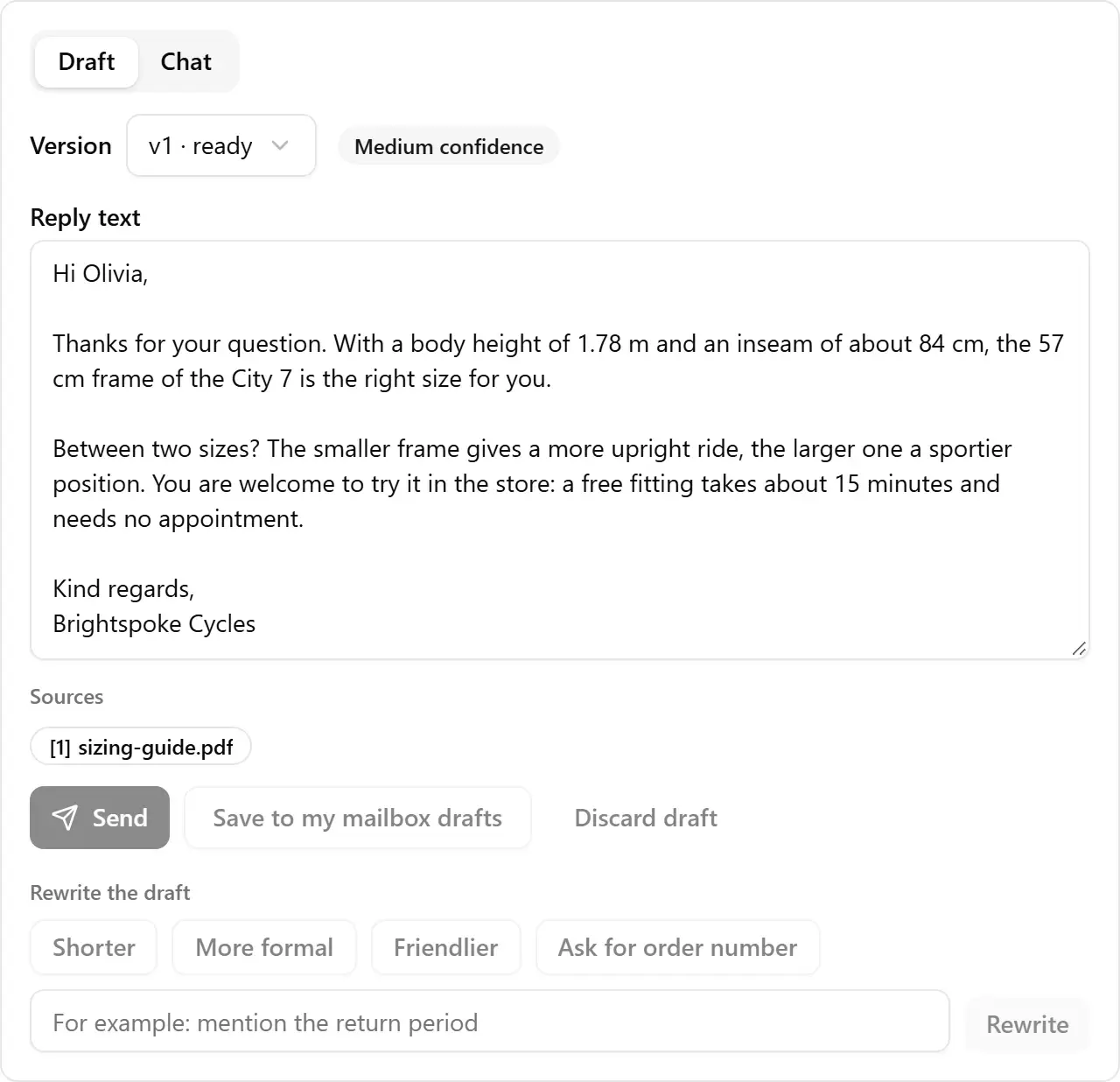
Example: a customer asks which frame size fits a height of 1.78 m. The drafted reply cites two facts, each linked to the passage in the shop's sizing guide or return policy it came from, and a person approves the reply before it is sent.
- 01A person sends every email
- 02Every fact has a source
- 03Your AI key, your costs
- 04Hosted on one EU server
01The problem
The same questions, every week.
Opening hours, delivery times, return rules, warranty terms. Small teams spend hours a week typing answers that already exist somewhere in a document.
General AI chatbots are quick, but they guess. One confident wrong answer about a refund or a price costs more than the time it saved.
Typical questions
- When are you open on Saturday?
- Can I return this after 30 days?
- Is the warranty still valid?
- What does delivery to Antwerp cost?
02How it works
From inbox to reply in three steps.
- A
Connect and upload
Connect a mailbox: Outlook and Microsoft 365 with Sign in with Microsoft, or Gmail, Yahoo, iCloud and others over IMAP and SMTP. Then upload what your team already uses to answer questions: PDF, Word, text, web pages, spreadsheets or a quick FAQ entry.
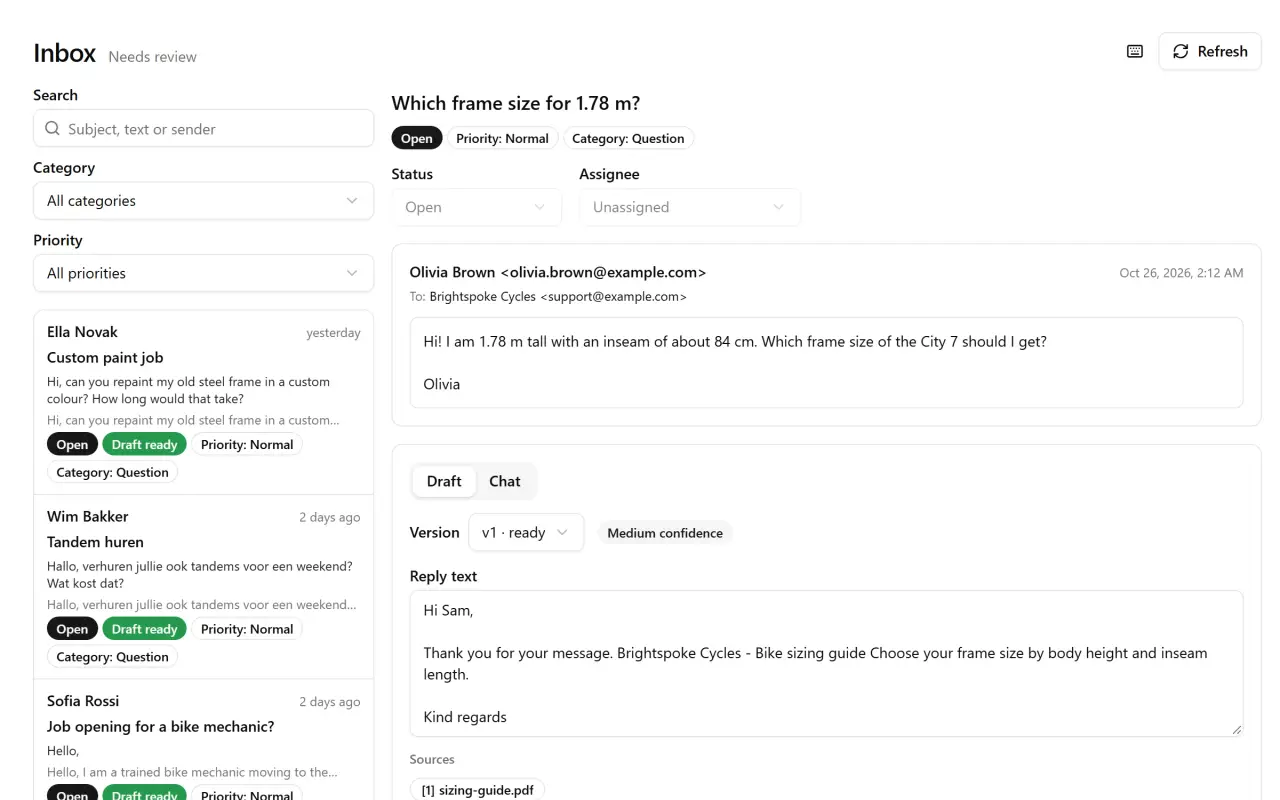
Demo workspace, fictional shop. - B
Get a cited draft
New email is sorted first: does it need a reply, what is it about, how urgent is it. Then the assistant searches your documents and writes a draft in your tone, with a source for every fact.
- C
Review and send
Read the draft next to the original email, edit it or ask for a rewrite, then send it from your own address or save it to your mailbox drafts. Nothing goes out without your click.

Demo workspace, fictional shop. The demo is read-only, so the buttons are off.
03The draft
A draft you can check before it goes out.
- 01
Confidence
Each draft shows how sure the assistant is about its answer.
- 02
Sources
Every fact names the document it came from. Click a source to see the exact passage.
- 03
Gaps
Missing information is listed instead of invented.
04Features
Built for the inbox of a small team.
- 01
Triage
Each new email gets a category, a priority, its language and a one-line summary. Newsletters, auto-replies and spam are set aside without using your AI key.
- 02
Cited drafts
Every fact in a draft points to the passage it came from, with a confidence level and a list of what is still unknown.
- 03
Rewrite on request
Shorter, more formal, friendlier, or your own instruction such as “ask for the order number”. Every version is kept.
- 04
Chat about an email
Ask the assistant about a thread before you answer, with the same sources.
- 05
Your knowledge base
Upload PDF, Word, text, Markdown, HTML and CSV files, paste text or add FAQ entries. Test it with questions in the playground.
- 06
Your tone and rules
Set the tone, signature, reply language, example replies, custom categories and things the assistant must never say or promise.
05Your data
Your key, your data, your decision.
Bring your own AI key
Paste a key from Anthropic, OpenAI or any OpenAI-compatible service such as OpenRouter, Mistral, Groq or a local Ollama. You pay the provider directly, at their prices, and set a monthly token cap so there are no surprises.
Encrypted secrets
AI keys and mailbox passwords are encrypted at rest, never logged and never shown again after saving; you only see the last four characters.
Separate workspaces
Every company's mail and documents live in their own workspace. Separation is enforced in the application and again by the database itself.
Search stays on the server
Your documents are indexed with a local model on the server. Only the email being answered and the few relevant passages are sent to the AI provider you chose.
06Questions
Questions
Is Nearlysent really free?
Yes. There is no subscription. You pay only your own AI provider for what you use, usually around a cent per answered email or less. A local model costs nothing at all, and drafting through Claude runs on your own Claude plan.
Do I need an AI key?
Not if you use Claude. Add the app as a custom connector in Claude and ask Claude to draft replies on your own Claude plan; the drafts appear in your inbox for review. With your own AI key you get automatic drafts for every new email instead. Use with Claude
Does it send email on its own?
No. A person approves every outgoing email. The assistant only writes drafts, and Claude through the connector can only save drafts too; sending is always a click by someone on your team.
What if my documents don't contain the answer?
Then the draft says so and lists what is missing, instead of guessing. You can add the missing information to your knowledge base so the next draft has it.
Which mailboxes work?
Outlook.com, Hotmail and Microsoft 365 with Sign in with Microsoft (no password needed), and any mailbox with IMAP and SMTP: Gmail and Google Workspace with an app password, Yahoo, iCloud and most hosting providers.
Which languages does it handle?
Drafts follow the customer's language or a language you set. The app itself is available in English and Dutch.
Can I run it on my own server?
Not on your own, but a dedicated or on-premise installation for your company is available as a custom service. Ask through the Custom solutions page.