Everything between an incoming email and a sent reply.
Everything below is in the product today. It is built around one rule: the assistant prepares, a person decides.
01From email to reply
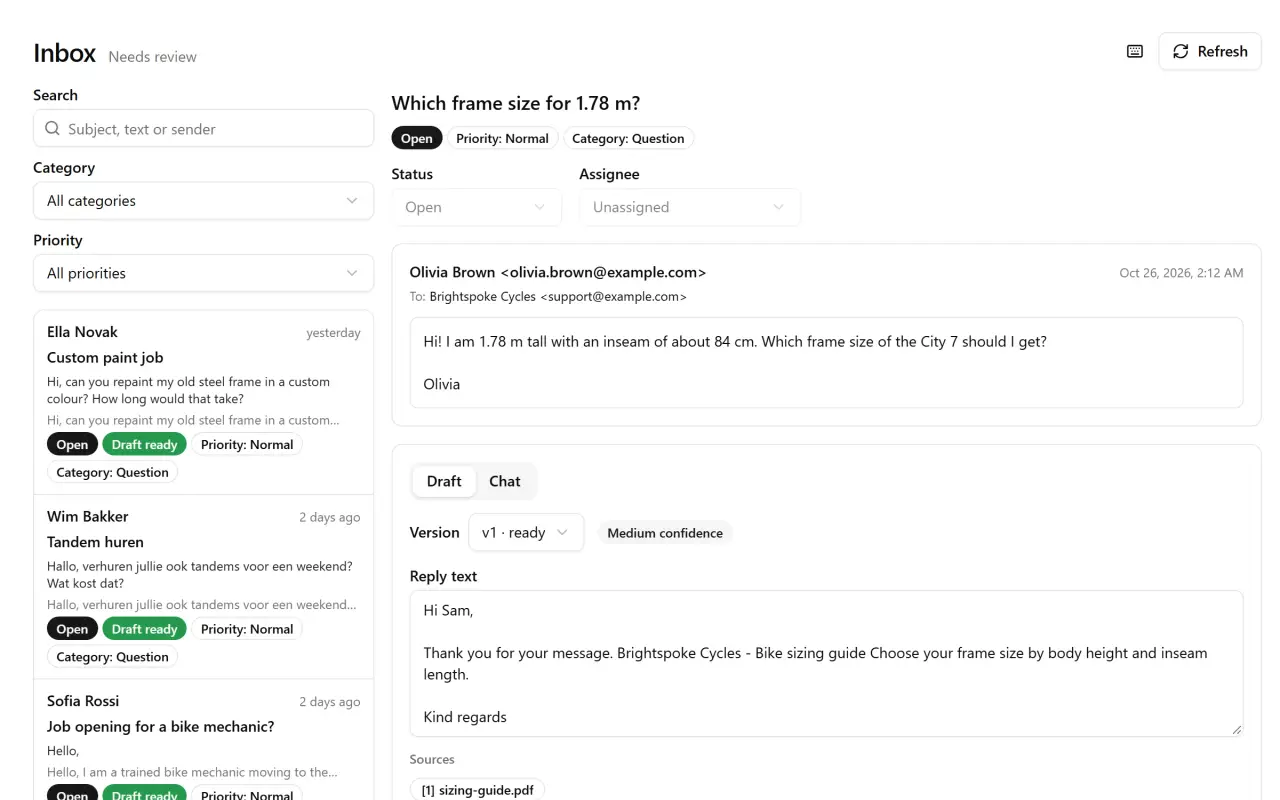
From incoming email to sent reply.
- 01
Works with any mailbox
Sign in with Microsoft for Outlook and Microsoft 365, IMAP and SMTP for any other provider. New mail is fetched regularly and grouped into threads; your original messages stay untouched on the server.
- 02
Loop and auto-reply protection
Automatic replies, bulk mail, your own address and no-reply senders are skipped, so the assistant never answers a robot.
- 03
Send or save to drafts
Send the approved reply from your own address with correct threading, or save it to the Drafts folder of your mailbox and send it from your usual app.
- 04
Review queue
Needs review, Waiting and Done views, filters by category and priority, assignees, search and keyboard shortcuts.
02Answers you can check
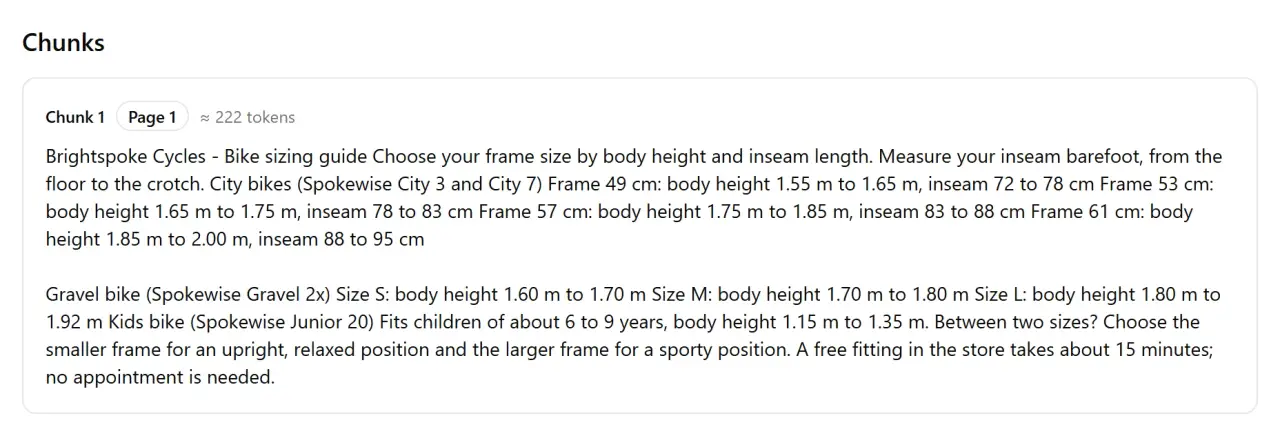
Every fact points to its passage.
01Hybrid search
Your documents are searched by meaning and by exact words at the same time, in many languages, with a local model on the server.
02Honest about gaps
When the documents don't cover a question, the draft says so and lists the missing information instead of making something up.
03Learns from sent replies
If you opt in, replies your team approved and sent become extra knowledge for similar questions later.
04Website quick start
Paste your website address or an about-us text and get a suggested company profile, tone and categories to start from.
03For the team and the owner
A shared inbox with limits you set.
- 01
Workspaces and roles
Invite colleagues as owner, admin or member. Each company is its own workspace.
- 02
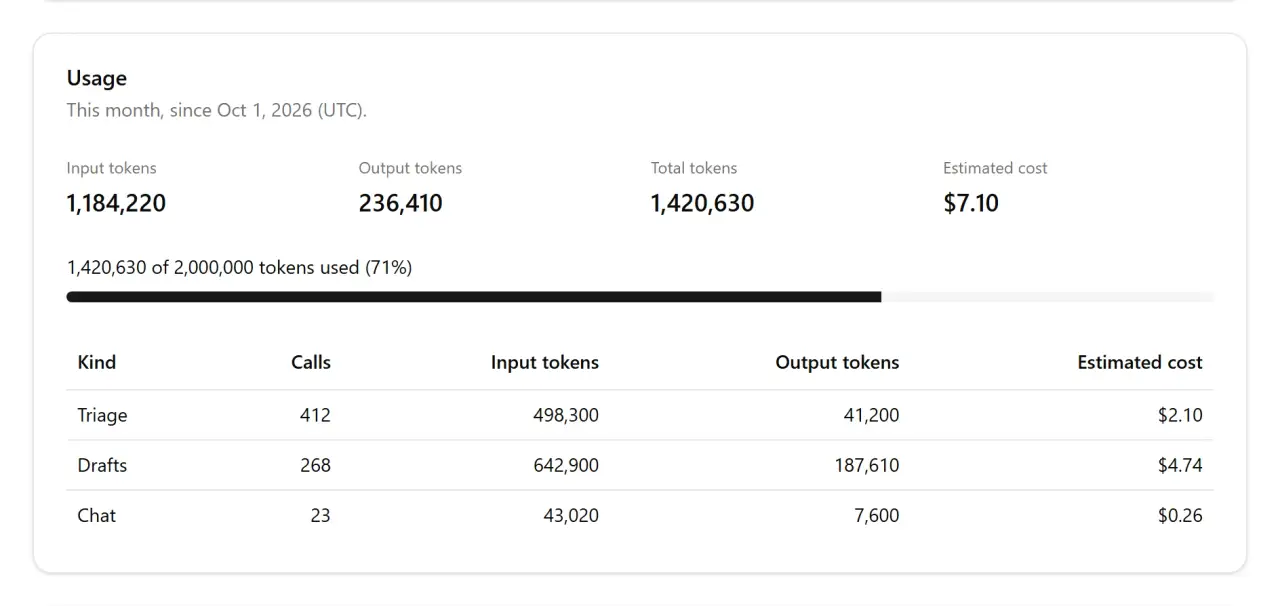
Usage and a monthly cap
Tokens and estimated cost per draft and per month, and a monthly token cap that protects your AI budget.
- 03
Dashboard
Emails received, drafted and sent, how much drafts were edited, acceptance rate and top categories.
- 04
Export and delete
Download your workspace as a ZIP with all data and original files, or delete the workspace or your account with everything in it.
04AI providers
Use the AI provider you choose.
Anthropic, OpenAI, and any OpenAI-compatible endpoint: OpenRouter, Mistral, Groq or a local Ollama. Pick a cheap model for sorting and a stronger one for drafts.
| Provider | What you need | Guide |
|---|---|---|
| Anthropic | An API key from the Claude Console | Get an Anthropic API key |
| OpenAI | An API key from the OpenAI platform | Get an OpenAI API key |
| OpenAI-compatible | The service's base URL and key (OpenRouter, Mistral, Groq, or an Ollama on a public HTTPS address) | OpenAI-compatible endpoints |
| Claude connector | Your own Claude plan; no API key | Use with Claude |
Works inside Claude: no API key needed
Add Nearlysent as a custom connector in claude.ai, Claude Desktop or Claude Code. Claude lists the emails that need a reply, reads them, searches your knowledge and saves reply drafts, on your own Claude plan. It has no send tool: a person still reviews and sends every email in the app.